

Claude Code can build a whole website for you. But it cannot click a button on that website until you give it a browser tool. It reads files and runs commands. It does not see a page the way that you do.
Agent Browser gives it that tool. It is a free, open-source program from Vercel Labs. It gives Claude Code, Codex, Cursor and other coding agents a Chrome browser that the agent controls one command at a time. The agent reads each page as a short text list. Each button and each field gets an ID, for example @e2, and the agent clicks and types by that ID.
This guide gives you each step, from the install to safe daily use. You type a few install lines. You do not write code.
Short answer: to let Claude Code use a browser, install Node.js and Claude Code. Then install Agent Browser with two commands and add its skill to Claude Code. After that, tell Claude Code the task in plain words, and tell it to use agent-browser.
- Agent Browser is free and open source (Apache-2.0 license). Claude Code needs a paid Claude plan (Pro costs $20 a month) or an API account.
- It works on Mac, Windows and Linux. The maker lists Claude Code, Codex, Cursor, Gemini CLI, GitHub Copilot, Goose, OpenCode and Windsurf.
- The browser works in the background. A live dashboard shows each step, and the agent can use your logins if you allow it.
- By default, Agent Browser puts no limits on sites or actions. For real work, add a list of allowed sites and a policy file.
What it means when Claude Code uses a browser
A browser task is a job that you do on a website with a mouse and a keyboard. For example:
- Check that each link and each form on your website works after a change.
- Copy the prices from a list of public pages into a table.
- Test the checkout of your online store with test data.
Claude Code works in a terminal, the text window of your computer. A browser tool lets it open a page, click, type, and then read the page again to check the result.
AI tools read a web page in one of two ways:
- From a picture. The tool takes a screenshot of the page. The AI must then find each button in the picture and decide where to click.
- From the page structure. The tool reads the accessibility tree, the list of headings, buttons, fields and links that screen readers use. The AI acts on one item of that list. Agent Browser works this way.
What Agent Browser is
Agent Browser is a command-line tool, a program that you control with typed commands. Vercel Labs makes it, and Chris Tate of Vercel has the most commits in the project. On 19 November 2026, the GitHub page had more than 52,800 stars. The newest version was 0.43.0, from 12 November 2026. The project started in January 2026.
How it works:
- The first command starts a small background program, a daemon. The daemon opens Chrome and keeps it open between commands.
- The
snapshotcommand gives the page as a short text list. Each item gets a ref, an ID such as@e1. - The agent acts on a ref. Then it takes a new snapshot to check the result, and it does the next step.
- If there are no commands for one hour, the daemon closes the browser and stops.
This is the example on the Snapshots page of the maker:
agent-browser snapshot -i
# Output:
# @e1 [heading] "Example Domain" [level=1]
# @e2 [button] "Submit"
# @e3 [input type="email"] placeholder="Email"
# @e4 [link] "Learn more"
agent-browser click @e2 # Click the Submit button
agent-browser fill @e3 "a@b.com" # Fill the email input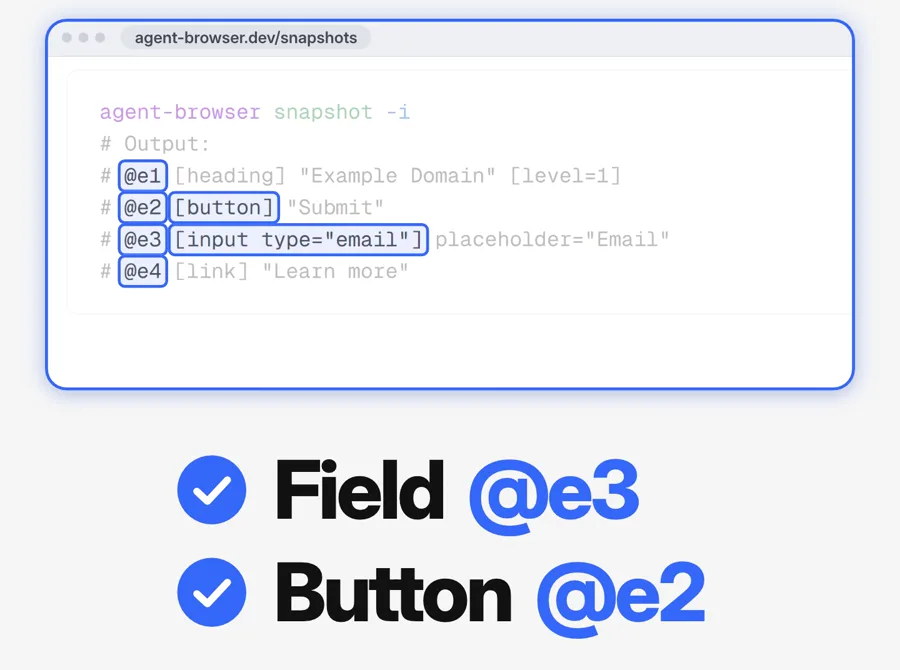
Claude Code types these commands for you. It helps to know them, because Claude Code shows each command before it runs it.
Before you start
| You need | Details |
|---|---|
| A computer | macOS, Windows (x64) or Linux. Claude Code needs macOS 13 or later, or Windows 10 (version 1809) or later, and 4 GB of RAM or more. |
| Node.js | Free. Agent Browser installs through npm, the package tool that is part of Node.js. |
| Claude Code | Needs a Pro, Max, Ultra, Team, Enterprise or Console (API) account. The free Claude plan does not include Claude Code. Pro costs $20 a month, or $17 a month if you pay for a year. |
| Disk space | Space for one full Chrome download. Agent Browser downloads its own Chrome the first time. |
| Optional | A Browserbase API key for a cloud browser. A Vercel AI Gateway key for the chat panel of the dashboard. |
Stage 1: Install Node.js
- Open the Node.js download page. Download the LTS version for your computer. LTS means long-term support, the stable version.
- Run the installer. Accept the default options.
- Open a new terminal window. On a Mac, open the Terminal app. On Windows, open PowerShell.
- Type
node --versionand press Enter. Then typenpm --versionand press Enter. Each command shows a version number.
If the terminal says that node is not found, close the terminal and open a new one.
Stage 2: Install Claude Code and sign in
If you use Claude Code now, go to Stage 3.
- On a Mac or on Linux, type this line in the terminal and press Enter:
curl -fsSL https://claude.ai/install.sh | bash - On Windows, type this line in PowerShell and press Enter:
irm https://claude.ai/install.ps1 | iex - The install shows no progress while it downloads. When it stops, open a new terminal window and type
claude --version. You should see a version number. - Type
claudeand press Enter. Follow the prompts in your browser to sign in.
If the terminal says that claude is not found, the install folder is not on your PATH. The PATH is the list of folders that your computer searches for commands. The Claude Code setup guide shows the fix.
Stage 3: Install Agent Browser
You have two options. Option A gives the job to Claude Code. In Option B, you type the same steps yourself.
Option A: let Claude Code install it
Start Claude Code with claude. Copy this prompt and paste it into Claude Code:
Install Agent Browser for me. Do these steps in order:
1. Read the README at https://github.com/vercel-labs/agent-browser.
2. Run "npm install -g agent-browser".
3. Run "agent-browser install". This downloads its own Chrome.
4. Run "agent-browser skills get core". Read the guide that it shows.
5. Test it. Open https://agent-browser.dev and tell me the main heading of the page.
If a step fails, stop and tell me the error. Ask me before you use my Chrome profile or my logins.In the default mode, Claude Code asks you before it runs a command. Read each command, then approve it. Prefer a one-click copy? The same prompt is on our free Agent Browser page.
Option B: type the install lines yourself
- In a terminal, type this line and press Enter:
Thenpm install -g agent-browser-gpart installs it for your whole computer, not for one folder. The program file is about 18 to 20 MB. - Type this line and press Enter:
The first time, this downloads Chrome for Testing, a version of Chrome for automated tests. This is the longest step, because it downloads a full browser.agent-browser install - On Linux, type
agent-browser install --with-depsin place of the line above. It also installs the system libraries (shared files) that the browser needs. - Type
agent-browser doctorand press Enter. It checks the program, Chrome and your settings, and it does a test launch of the browser.
On a Mac with Homebrew, brew install agent-browser and then agent-browser install also work. If your macOS is older than version 13, agent-browser install stops before the Chrome download. Update macOS in System Settings > General > Software Update, or install Chrome yourself.
Stage 4: Teach Claude Code to use it
Claude Code does not know about a new tool until you tell it. A skill is a short instruction file that Claude Code reads when a task needs it. Agent Browser gives you one.
- Open a terminal in the folder where you use Claude Code.
- Type this line and press Enter:
npx skills add vercel-labs/agent-browser - The tool asks which skills to install and which coding agents to install them to. Select Claude Code.
- To use the skill in all of your projects, add
-gto the end of the line. - Start Claude Code with
claude. The skill is now available.
The skill is small on purpose. It tells Claude Code to run agent-browser skills get core. That command prints the full guide for the version that you installed, so the instructions always match your version.
You can also do it without the skill. Add these two lines to your instructions file (CLAUDE.md for Claude Code, or AGENTS.md):
Use `agent-browser` for browser automation. Before the first use, run
`agent-browser skills get core` and follow it.Stage 5: Give Claude Code its first browser task
Start with a small task that reads and changes nothing. Tell Claude Code to use agent-browser, so that it does not choose a different tool.
Use agent-browser for this task.
1. Open my website: [paste your website address here].
2. Take a snapshot of the home page. List each button, field and link.
3. Open each link in the main menu. Tell me which pages open and which pages show an error.
4. Do not fill or send any form. Do not buy anything.What you will see:
- In the default mode, Claude Code shows each command, for example
agent-browser snapshot -i, and asks you before it runs it. Read it, then approve it. - No browser window opens on your screen. The browser is headless, which means that it has no window. On Windows, it runs on a private desktop, so it does not cover your work.
- Claude Code gives you the answer in the chat.
If you want to see the window, tell Claude Code to add --headed to the open command.
When the first task works, try a form test. Use test data, and make Claude Code wait for you before it sends anything:
Use agent-browser. Open the contact page of my website: [paste the address here].
Fill the form with this test data: name "Test", email "test@example.com", message "Test message, please ignore".
Take a screenshot of the full form and show me the file.
Wait for my OK before you click Send.If you send the form, your team gets a real message. Tell them about the test first.
Stage 6: Watch each step on the live dashboard
- In a terminal, type this line and press Enter:
agent-browser dashboard start - Open
http://localhost:4848in your normal browser. - Give Claude Code a browser task. The dashboard shows a live view of the page. A feed shows each command, its result and the console messages of the page.
The dashboard is part of the program, so it needs no extra install. Its Chat tab needs a Vercel AI Gateway key. You do not need that chat, because Claude Code is your agent.
Stage 7: Let the agent use your logins (optional)
Some tasks need your login, for example your CRM or your store admin. Agent Browser can use the login state of your own Chrome.
- On Windows, close Chrome before you use
--profile. - Tell Claude Code to run
agent-browser profiles. It lists the names of your Chrome profiles. - Tell Claude Code which profile to use, and what it must not do. For example:
Use agent-browser with --profile Default. Open [paste the address of your store admin here] and tell me the five newest orders. Do not change, send or delete anything.
What happens: Agent Browser copies the profile to a temporary folder, as a read-only copy. It opens Chrome with your cookies and sessions. Your own profile does not change, and Agent Browser deletes the copy when the browser closes. This works with Chrome, Chrome Canary, Chromium and Brave.
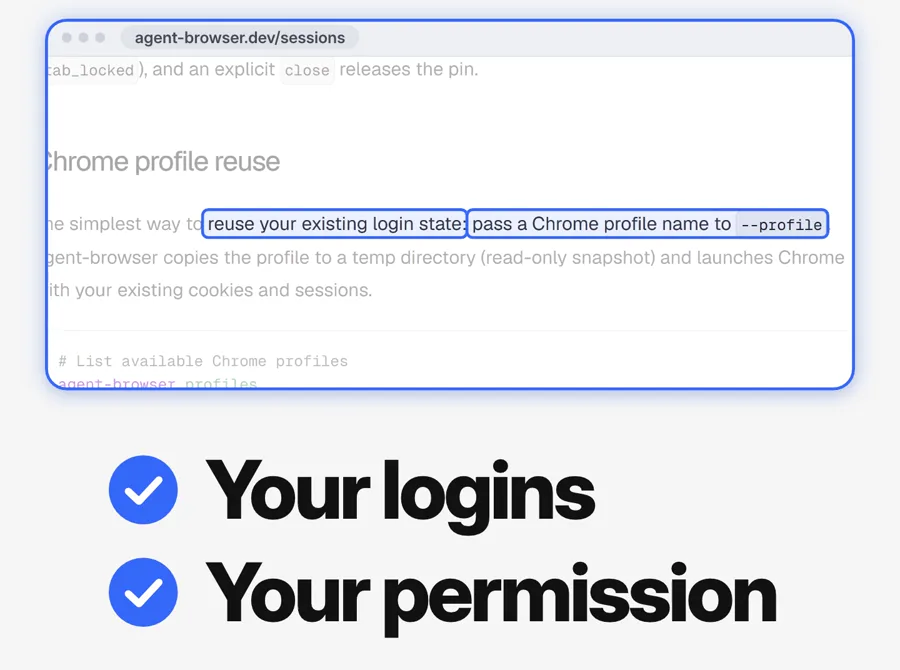
A separate profile only for the agent is safer. Give --profile a folder path, for example --profile ~/.agent-profile. Sign in one time in that profile with --headed, and type the password yourself. The profile keeps the login.
With your logins, the agent can do anything that you can do on those sites. Give it a login only for a task that you trust. Do not give it your bank or payment accounts.
Make it safer: limit the sites and the actions
By default, Agent Browser puts no limits on the sites that the agent opens, the actions that it does or the text that it reads. The security page of the maker warns about prompt injection, which is text on a page that tries to give orders to the AI:
Malicious pages can embed text that looks like tool output or system instructions.
Agent Browser has four settings that help. Tell Claude Code to add them to each command:
- A list of allowed sites.
--allowed-domains "yourstore.com,*.yourstore.com"blocks all other sites. Also add the sites that your pages load files from, for example a font service. You cannot use this setting with--profile. - A policy file. A short file that blocks types of actions. This example blocks JavaScript commands (eval), downloads and uploads:
Save it as{ "default": "allow", "deny": ["eval", "download", "upload"] }policy.jsonand add--action-policy ./policy.json. - Page text markers.
--content-boundariesputs markers around all text from the page. The agent can then see which text came from the page and which text came from the tool. - A password vault.
agent-browser auth savekeeps a login on your computer, encrypted.agent-browser auth loginuses it. The AI never sees the password.
Claude Code adds one more check: in the default mode, it asks you before each command. Use that mode for browser tasks.
Tasks to try next
When the basic tasks work, type one of these into Claude Code.
- A page speed report. "Use agent-browser vitals on my home page. Explain each number in plain words."
- A test of your site, as a new customer. "Run agent-browser skills get dogfood. Then test my booking page as a new customer and give me a report." The dogfood skill uses the site like a real user, finds bugs and problems, and writes a report with screenshots and videos.
- A video of a flow. "Record the steps of my checkout as a video, so that my team can see them." Agent Browser records at up to 60 frames a second.
- Data from public pages. "Open each of these pricing pages. Copy the plan names and prices into a table." Read the terms of each site before you automate it.
To see all the skills of Agent Browser, tell Claude Code to run agent-browser skills list. Other skills are for Slack, Electron apps and Vercel deployments.
For Codex, Cursor or another agent, run the same npx skills add line and select that agent. For an AI app that accepts only MCP (Model Context Protocol, a standard way to connect tools to an AI), agent-browser mcp starts an MCP server.
What it costs
| Item | Price | Notes |
|---|---|---|
| Agent Browser | $0 | Free and open source, Apache-2.0 license. |
| Node.js | $0 | Free download. |
| Claude Pro, for Claude Code | $20 a month, or $17 a month billed yearly ($200 a year) | Usage limits apply. |
| Cloud browser, for example Browserbase | Optional | Needs an account and an API key from the provider. |
Each browser task uses your Claude usage. How fast you reach a limit depends on the model, the length of your chats and the size of your files.
No time to build browser tasks like these for your business? Our AI automation service builds and runs AI workflows for you.
Common problems and fixes
- The terminal does not find agent-browser. Open a new terminal. If that does not help, install it again with
npm install -g agent-browser. Do not add--omit=optional, because that skips the program file. - The Chrome download stops on a Mac. Your macOS is older than version 13. Update macOS, or install Chrome yourself.
- A click fails. The button is hidden, disabled, outside the visible part of the page, or under another item, for example a cookie banner. Tell Claude Code to close the banner, take a new snapshot and try again.
- A ref does not work any more. Refs describe the page at the time of the snapshot. After the page changes or a new page opens, take a new snapshot.
- The browser closed by itself. The daemon stops after one hour with no commands. The next command starts a new one.
- --profile fails on Windows. Chrome is open. Close Chrome and try again.
- Something else is wrong. Run
agent-browser doctor --fix. It removes old files and does repairs, for example a new Chrome download. Runagent-browser upgradeto get the newest version.
Other ways to let Claude Code use a browser
| Option | What it is | Choose it when |
|---|---|---|
| Agent Browser | A free command-line tool from Vercel Labs | You want a background browser, a live dashboard, safety settings and one tool for many coding agents. |
Claude in Chrome (claude --chrome) | The browser extension of Anthropic, connected to Claude Code | You want Claude in your own Chrome window, with your logins. It needs a paid Claude plan and does not work in WSL. |
| Playwright MCP | An MCP server from Microsoft that also reads the page structure | Your AI app accepts MCP servers and not command-line tools. |
| Chrome DevTools MCP | An MCP server from the Chrome DevTools team | You want to debug a page with Chrome DevTools. |
Claude in Chrome stops at a login page or a CAPTCHA and asks you to do that part. The Playwright MCP page itself suggests a command-line tool with skills for coding agents.
Who this guide is not for
- People who do not want to use a terminal at all. The Agent Browser install needs a terminal.
- People with no paid plan for a coding agent. Claude Code needs a paid Claude plan or an API account.
- Tasks with money. Do not give an agent your bank, payment or ad account logins.
- One quick answer from one page. A normal chat with Claude is enough for that.
Frequently asked questions
Can Claude Code use a browser on its own?
Not to click and type on a page. Claude Code needs a browser tool for that. Agent Browser is a free option that works in the background. Claude in Chrome, which you start with claude --chrome, is the option from Anthropic.
Is Agent Browser free?
Yes. It is free and open source under the Apache-2.0 license. Your coding agent has its own cost. For example, Claude Code needs a paid Claude plan or an API account. Cloud browsers and the AI chat of the dashboard are optional and need their own keys.
Does Agent Browser work with Codex or Cursor?
Yes. The maker lists Claude Code, Codex, Cursor, Gemini CLI, GitHub Copilot, Goose, OpenCode and Windsurf. Run npx skills add vercel-labs/agent-browser and select your agent.
Can the AI see my passwords?
With --profile, the agent gets a read-only copy of your cookies, local storage and extension state, so it is already signed in. With the auth vault (agent-browser auth save), the password stays encrypted on your computer and the AI never sees it.
Can I watch what the agent does?
Yes. Run agent-browser dashboard start and open http://localhost:4848. You see a live view of the page and a list of each command. To see a normal browser window, add --headed to the open command.
What is the difference between Agent Browser and Claude in Chrome?
Agent Browser runs its own Chrome in the background and works with many coding agents. Claude in Chrome is the extension from Anthropic. It works in your own visible Chrome window, with your logins, and it needs a paid Claude plan.
Sources
- Agent Browser on GitHub
- Latest release (0.43.0)
- Agent Browser website
- Agent Browser: installation
- Agent Browser: quick start
- Agent Browser: snapshots and refs
- Agent Browser: skills
- Agent Browser: sessions
- Agent Browser: dashboard
- Agent Browser: security
- Agent Browser: commands
- Agent Browser: Browserbase provider
- The skills command-line tool
- Claude Code setup guide
- Claude Code permission modes
- Use Claude Code with Chrome
- Claude plans and prices
- Node.js download
- npm docs: install Node.js and npm
- Playwright MCP on GitHub
- Chrome DevTools MCP on GitHub